Many sites contain images and other files that can't be created online. In order to add these files into your site,
you must upload them through our upload manager.
Uploading a File
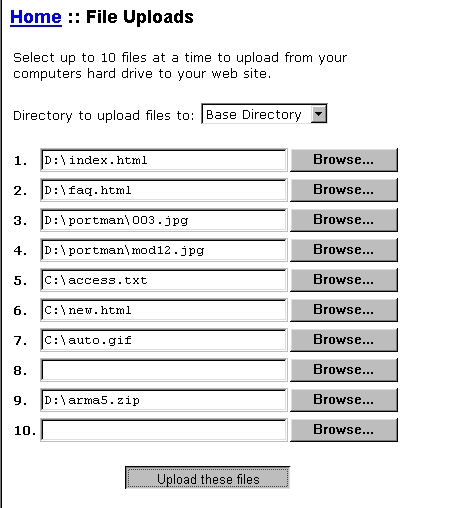
To upload a file, login to your File Manager and scroll down until you see a section titled
"File uploads -- Upload files from your hard drive to current directory". Click the browse button on any of the following 5 text fields
and select a file from your computer. By default, html files will be the only file type that will show up in this box,
but you can change this by selecting what type of files to show from the drop down box on this popup window. Once you have selected
your file(s), click the upload button and they will be sent to your site. The file manager program will then reload and
all your uploaded files will show. Note: uploading large files may take a while so be patient.
Return to the main
index What types of files may I upload?
You are able to upload most types of files automatically however web servers
have problems with certain filenames. For example, filenames with spaces
or multiple dots such as xxx.xxx.xxx.xxx.html often
cause problems.
Return to the main
index Why do I receive an error when uploading?
If you receive an error when uploading, there could be several possible
reasons including:
You account has run out of disk space
and therefore can no longer receive files.
You are trying to upload a file with
a name that causes web servers problems such as xxx.xxx.xxx.xxx.html
Your
ISP does not
like you uploading files of that size or at that time so try again later.
Do uploaded files override other files?
Yes, a file that you create, rename or upload that has the same file name as another file will override this file.
Many parts of the program will notify you if you are overriding another file, but not everything, so check your
files against the file name before uploading.